![Allgo_Logo_PNG.png]](https://kb.allgogroup.com/hs-fs/hubfs/Allgo_Logo_PNG.png?height=40&name=Allgo_Logo_PNG.png)
Step 1. Create the Import Spreadsheet
- On your desktop drive, go to AllGo Group > Operations > AllGo Mastercard - Orders
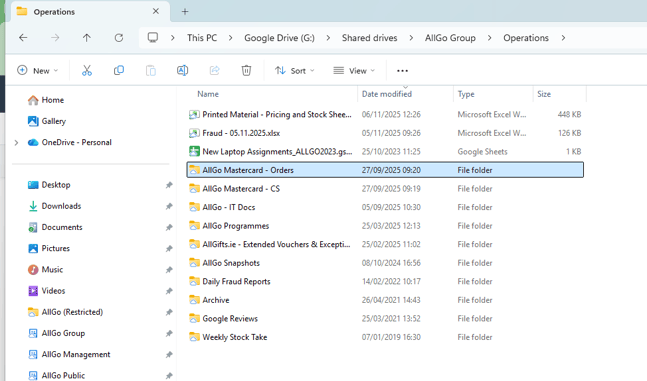
-
For Replacements:
-
Open HubSpot Daily Replacements Tickets Imports - TEMPLATE and save as (press F12) a new file in the HubSpot Replacements Import Files - Current Year folder. Change the name of the file to "Replacement Import [Todays date] [Time of import]"
-
-
For Cancellations and Refunds:
-
Open HubSpot Daily Cancellations Tickets Imports - TEMPLATE and save as (press F12) a new file in the HubSpot Cancellations Import Files - Current Year folder. Change the name of the file to "Cancellations Import [Todays date] [Time of import]"
-
Step 2. Locate Paid Orders
-
In the AllGo Mastercard - Xero Invoice Tracking Google Sheet, Select either;
-
Replacement Card Invoices (Xero) page for Replacements
OR - Cancellation & Refund Invoices (Xero) page for Refunds and Cancellations
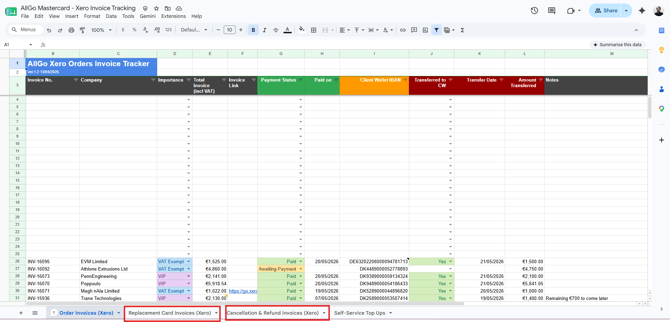
-
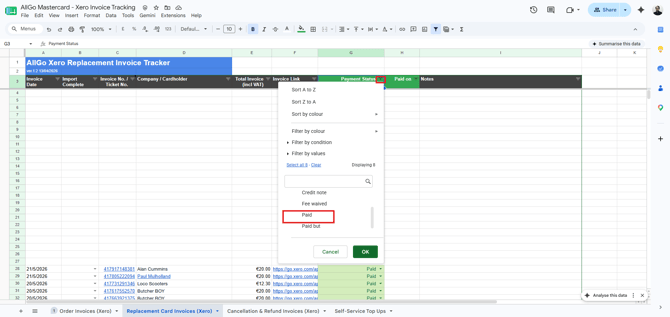
- In either page find the Payment status Column, select the filter button and choose the option "Paid".
- Next copy all of the Invoice No. / Ticket No. before the any Import Complete rows.
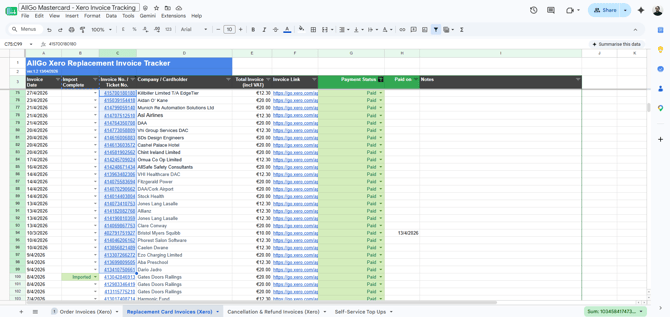
- Paste all of the Invoice No. / Ticket No. into the import file you had previously opened.
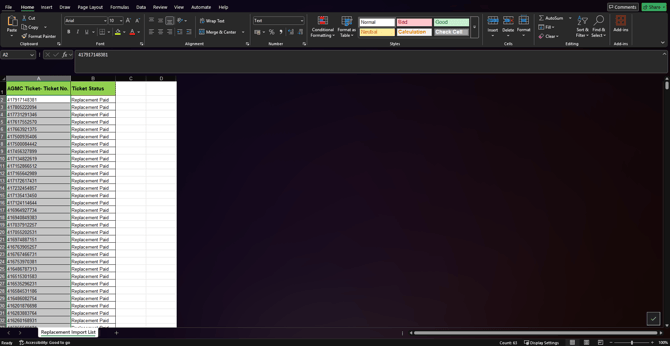
Paste using Ctrl+shift+V otherwise the number pasted will be in the incorrect format
- In the top row of tracker find the Import Complete and select "Imported".
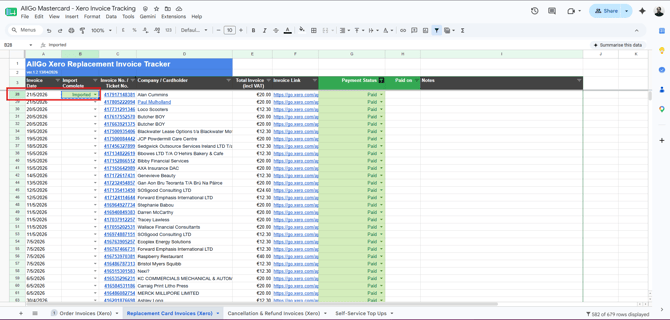
Always remember to turn off the filter when exiting the tracker.
4. Importing into HubSpot
Once you have the import spreadsheets completed as per above, you can then proceed to import either the Cancellations or Replacement spreadsheets into their respective pipelines
The import will use the Invoice No. / Ticket No. from the Tracker to match the tickets in the import file and update the status of the ticket in HubSpot.
Video: How to Import Order Import File Data into HubSpot
1. Go to the Pipeline of the tickets you would like to import (Replacements or Cancellations & Refunds).
-
- In the top right corner, click Import.

- In the top right corner, click Import.
2. Start the Import
-
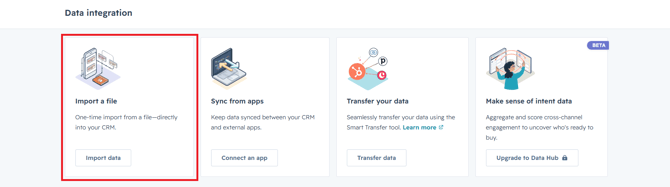
- Under 'Import a file', select Import Data.
-
- Choose Advanced Imports (all objects).
- Select Tickets.
- Click Next.
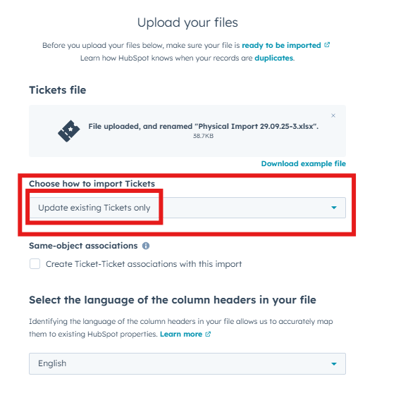
NB: In the "Choose how to import ticket" Field Select Update Existing Tickets Only!
Selecting 'Create and update Tickets' or 'Create tickets only' will result in new tickets being created, which we DO NOT WANT!
-
- In the Tickets file box, click the hyperlink text 'choose a file' to open a file select window.
- Select your previously created Import file from the shared drive (e.g., Replacement Import 29.09.25 (9.00am)).
- Press Next.
3. Check the Property Mappings
If the Import File has been prepared correctly, the 'Map columns in your file to ticket properties' screen will look like this. All values should be mapped correctly, and if not they should be changed by selecting any dropdowns showing incorrect values and fixing them: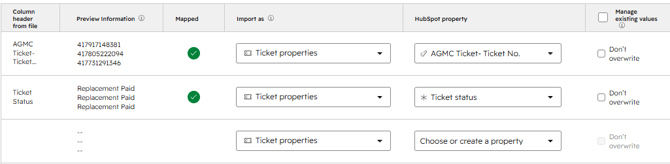
For an explanation of each Import File header, their corresponding property and their purpose in the import, see the table below.
| Import File Header | HubSpot Property | Purpose |
| Ticket Number No. | AGMC Ticket- Ticket No. | A unique identifier that finds existing tickets |
| Ticket Status | Ticket Status |
Changes the Pipeline Status to determine how the ticket is actioned (Should be 'Paid XXXX in most cases) |
- There will be a number of blank unmapped columns. ONCE THE ABOVE PROPERTIES ARE CORRECTLY MAPPED, tick 'Don't import data in unmapped columns' (bottom right of the screen) to remove them, which should allow you to continue.
- Press 'Next'.
4. Finish the Import
Once the import is complete, the imported tickets' properties will be updated accordingly, automatically moving them from 'Awaiting Payment' to - "Paid'.
Repeat the process for either Replacements or Cancellations & Refunds so that ALL paid Support tickets can be processed.
To continue with the support ticket please see either: